


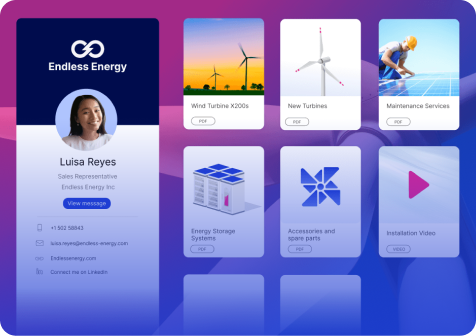

For many teams, content in Showell is organized in folders and subfolders. This structure works well for managing and maintaining content across the workspace.
With Layout Builder, you now have full control over how that structure is presented to your sellers and distributors.
Instead of relying only on folders, you can design a workspace with clear entry points, structured navigation, and a layout that reflects how your team works. You decide what users see first, how they move through content, and what should stand out.
Layout Builder builds on your existing structure and elevates it into a more guided and intentional content experience.
💡 Layout Builder is available in select plans.
What is Layout Builder and What Can You Do with It?
Layout Builder is Showell’s new themeing experience, replacing the previous Theme Editor. It gives admins full control over how content is visually structured across the homepage and subfolders.
With the Theme Editor, customization options were more limited. Layout Builder expands those capabilities by allowing you to design layouts more freely, based on how your team works and how you want content to be presented.
Instead of relying only on a folder-based view, you can design how users enter and navigate your workspace. This includes creating clear entry points, defining navigational paths that reflect your processes, and establishing a visual hierarchy so important content stands out.
With Layout Builder, you can:
- Design the visual structure of your homepage and subfolders
- Replace the default file view with a more intuitive and branded layout
- Guide users to relevant content through structured navigation
- Create different layouts for different audiences or use cases
- Build reusable templates to maintain consistency across your workspace
Layouts are built using drag and drop components such as hero sections, carousels, media blocks, and text blocks. These elements allow you to create layouts that match your brand and support how your team accesses content.
How Layout Builder Benefits Sellers
Layout Builder is more than a visual upgrade. It helps sellers navigate content in a way that feels clearer and more intuitive.
Instead of navigating through folders to figure out where to go next, sellers can follow a structure that reflects how they actually work. Content can be organized around products, industries, sales stages, campaigns, or other workflows that make sense to the team.
This improves content discoverability by giving sellers clearer direction. They know where to start, where to go next, and where to find the materials relevant to their situation.
It also creates a more consistent experience when presenting content to customers. A structured, branded layout helps sellers present information more clearly and reinforces your company’s brand throughout the sales conversation.
The result is a workspace that not only stores content, but also supports how sellers access, navigate, and present it.
How Does the Layout Builder Work?
Layout Builder gives admins a visual workspace for building and editing layouts. The editor is organized into a few main areas that help you choose templates, add blocks, preview the layout, and save changes.
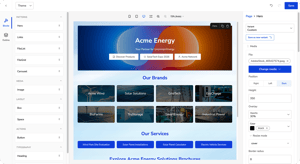
If you hover over the image hotspots, you'll find:
- Top menu is where you can select a theme to start from a premade template. You can also undo or redo changes and save your work. Changes are only implemented once they are saved.
- The Navigation Panel helps you manage the structure of your layout. From Blocks, you can choose components to add to the Page Canvas, including patterns, layout blocks, media blocks, and typography blocks. From Outline, you can see the blocks currently on the canvas and understand the hierarchy of elements.
- The Page Canvas is the main working area where you build and design your layout. You can also preview how the layout will look on desktop, tablet, and mobile. Layouts are responsive by default, meaning components automatically adjust across different screen sizes.
- For selected blocks, Variants allow you to quickly choose from available presets. If you need more control, the Custom option opens the relevant property options for that block. These options depend on the selected block, so not every block supports the same settings. When you create a custom variant that you want to reuse, you can save it to your variant list and apply it later.
What You Can Build with Layout Builder
Layout Builder allows you to move beyond folder structures and design how users access and navigate content. Here are practical ways you can structure your workspace.
1. Create a Brand-Styled Homepage
You can replace the default file view with a homepage that reflects your brand and how your team works.
Instead of landing on a list of folders, users start from a structured page where key sections, content, or brands are clearly defined. You can highlight important materials, surface frequently used content, and direct users to the right starting points.
This also allows you to shape the first impression of your workspace. You can align the layout with your brand, messaging, and structure, making the experience more consistent and easier to navigate.
2. Guide Navigation Based on How Your Team Works
Instead of relying only on folder hierarchies, you can design navigation based on how your team actually looks for and uses content.
In many cases, folder structures reflect how content is stored, not how it is accessed. With Layout Builder, you can bridge that gap by organizing entry points around what makes sense to your users.
.png?width=1443&height=1006&name=image%20(4).png)
For example, you can structure navigation by:
- Product
- Industry
- Region
- Use case
You can also combine these perspectives, depending on how your team operates. For instance, a seller might start from a product view, then move into industry-specific materials, all without needing to navigate multiple folder levels.
This approach reduces the need to search or guess where content lives. Instead, users are guided through a structure that reflects their workflow, making it faster to find relevant materials and easier to stay focused on the task at hand.
3. Turn Campaign or Event Folders into Structured Hubs
You may already have subfolders for campaigns, trade shows, or events.
With Layout Builder, you can turn those folders into structured, purpose-built hubs that reflect the context of the campaign or event.
Instead of a simple list of files, you can design a layout that highlights key materials, organizes content into clear sections, and guides users to what they need. For example, you might group content by pre-event, during-event, and post-event materials, or highlight the most important assets at the top.
This allows you to keep your existing folder structure while presenting the content in a way that better supports how your team prepares for and executes campaigns and events.
.png?width=1549&height=1083&name=image%20(3).png)
4. Support Guided Selling
You can design layouts that reflect your sales process and guide reps through each stage.
Instead of leaving it up to the rep to decide what content to use, you can structure the layout around key stages such as discovery, demo, proposal, and closing. Each stage can include the relevant materials, messaging, and supporting assets needed at that point in the conversation.
This helps standardize how your team uses content. Reps can follow a clear path, understand what to use at each step, and stay aligned with your sales approach.
It also reduces uncertainty, especially for new team members or external partners. Rather than searching through folders, they can move step by step through a structure that supports how deals are actually run.
.png?width=1120&height=1067&name=image%20(2).png)
5. Create Product Launch Spaces
You can centralize everything related to a product launch in one structured space.
Instead of spreading materials across multiple folders, you can design a layout that brings together training content, product information, messaging, and updates in a single view. You can also highlight the most important assets and organize content in a way that supports how your team prepares for and communicates the launch.
This makes it easier for sellers and partners to stay aligned. They know where to go for the latest information, what to prioritize, and how to use the materials in customer conversations.
6. Tailor Views for Key Accounts
You can create layouts that are specific to certain customers, segments, or strategic accounts.
Rather than presenting a broad set of content, you can surface only what is relevant for that audience. This might include tailored messaging, selected materials, or content that supports a specific account strategy.
This helps teams stay focused when working on important accounts. It reduces noise, improves consistency in communication, and ensures that the content being used is aligned with the context of that customer.
7. Build Internal or External Portals
Layout Builder can be used to create structured environments for different audiences, both internal and external.
For internal teams, you can build hubs for training, onboarding, and updates. This gives your team a clear place to access resources and stay up to date.
For external audiences, such as dealers or partners, you can create curated portals that present only the content relevant to them. These layouts can be structured to guide users, highlight key materials, and make navigation straightforward.
This makes it easier to deliver the right experience depending on who is accessing the workspace, while keeping everything organized within the same system.
Design a More Intuitive Content Experience
Layout Builder gives you control over how your workspace is presented, without changing how it is structured behind the scenes.
Instead of relying only on folders, you can design entry points, guide navigation, and highlight what matters most. This helps your team find the right content faster and use it with more confidence.
Whether you are creating a branded homepage, structuring content around your sales process, or building dedicated spaces for campaigns and partners, Layout Builder helps you turn your workspace into a more intentional and effective experience.
Frequently Asked Questions (FAQs) about the Layout Builder:Does Layout Builder change how folders are organized? Do I need to reorganize existing content?
What happens to user permissions? Will users see everything in the layout?
|